

Data cleaning
The Data cleaning section configures sensitive-data processing for each application. Saved settings apply to new messages and files.
Open Applications, select the application ID, and choose Data cleaning.
Built-in patterns
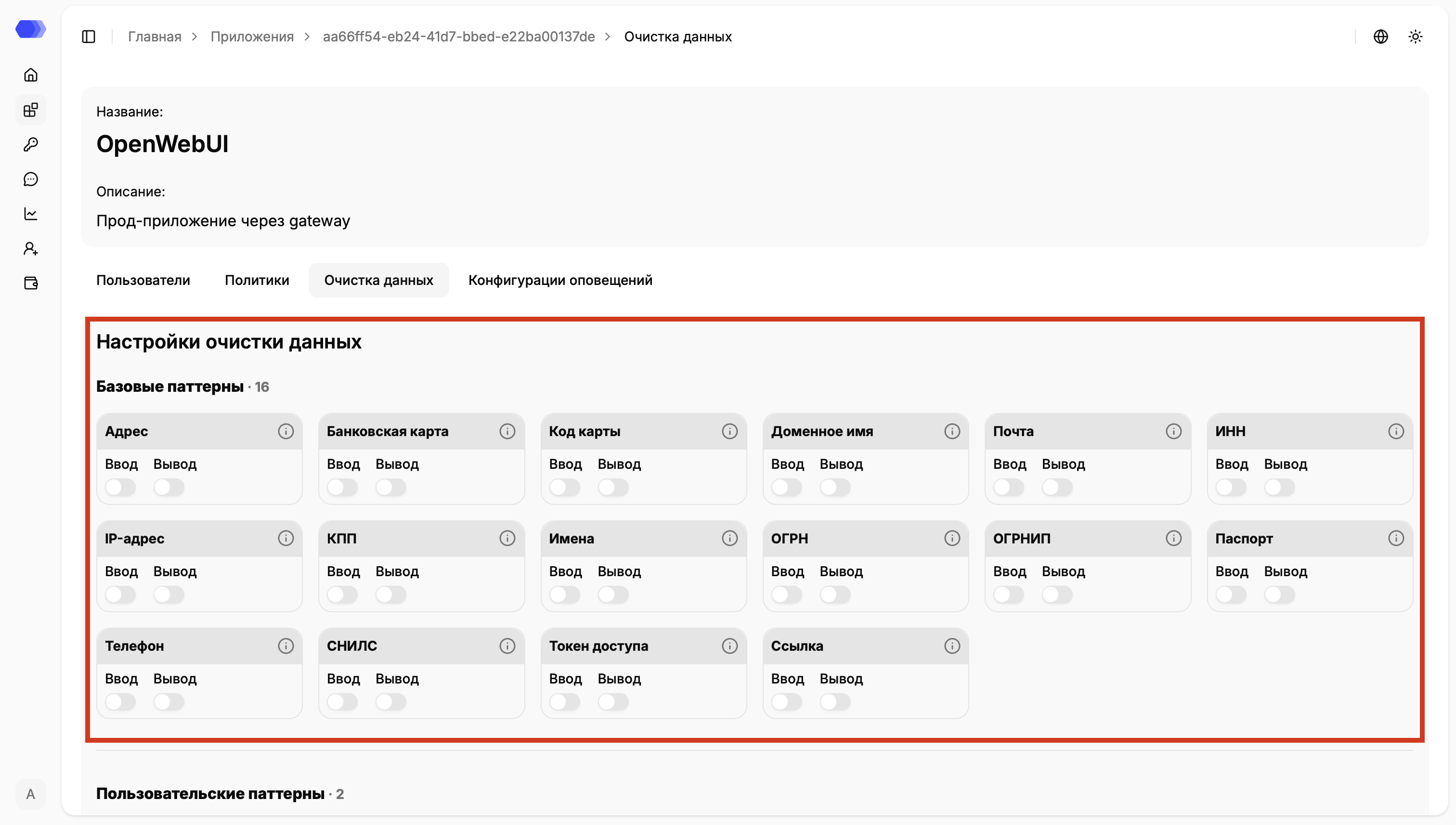
Section titled “Built-in patterns”The 16 built-in patterns are Address, Bank card, Card code, Domain name, Email, Tax ID, IP address, Tax registration reason code, Names, Primary State Registration Number, Individual Entrepreneur Registration Number, Passport, Phone, Individual Insurance Account Number, Access token, and Link.
Each card has two switches: Input checks user requests and Output checks model responses. The information icon opens the pattern description.
Custom and allowed patterns
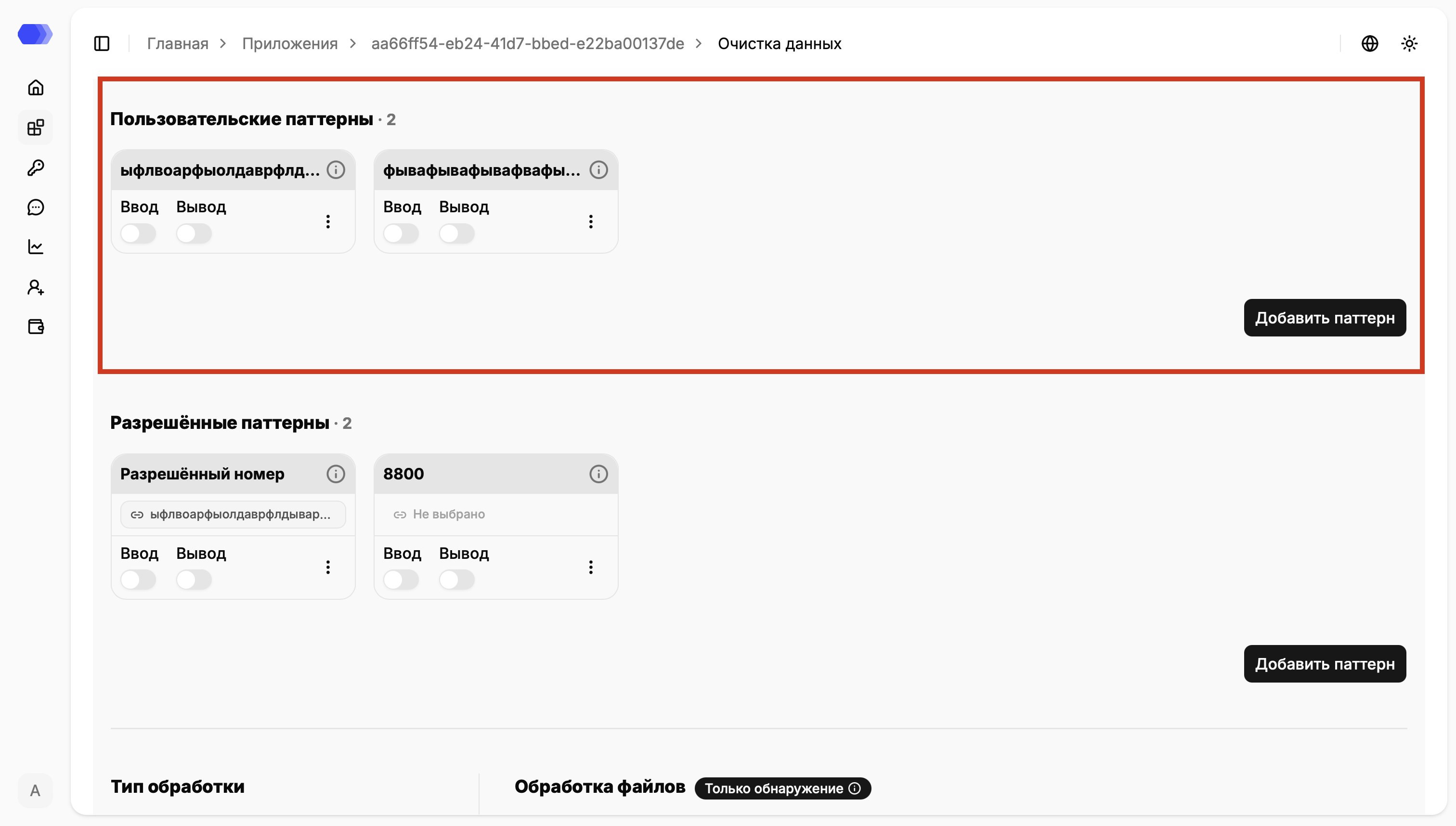
Section titled “Custom and allowed patterns”Custom patterns add team-specific regular expressions. Use Add pattern, then enable Input and/or Output. The three-dot menu provides edit and delete actions.
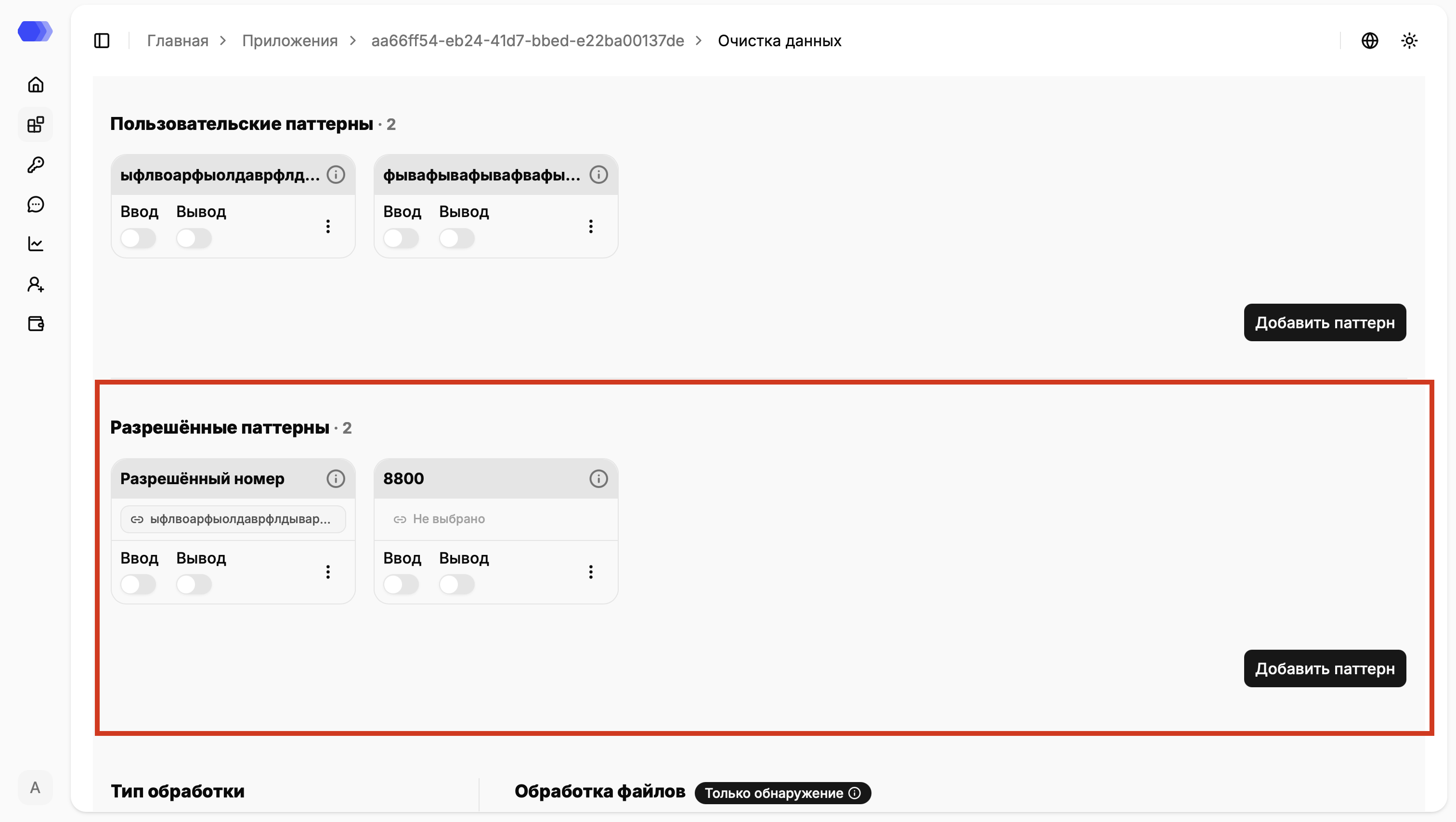
Allowed patterns define exceptions for values that resemble sensitive data but are valid in your workflow.
Processing mode
Section titled “Processing mode”Input and output can use different modes:
- Masking replaces the detected value with
Xcharacters. - Pseudonymization replaces it with a stable label such as
NAME_1orEMAIL_1.
File processing
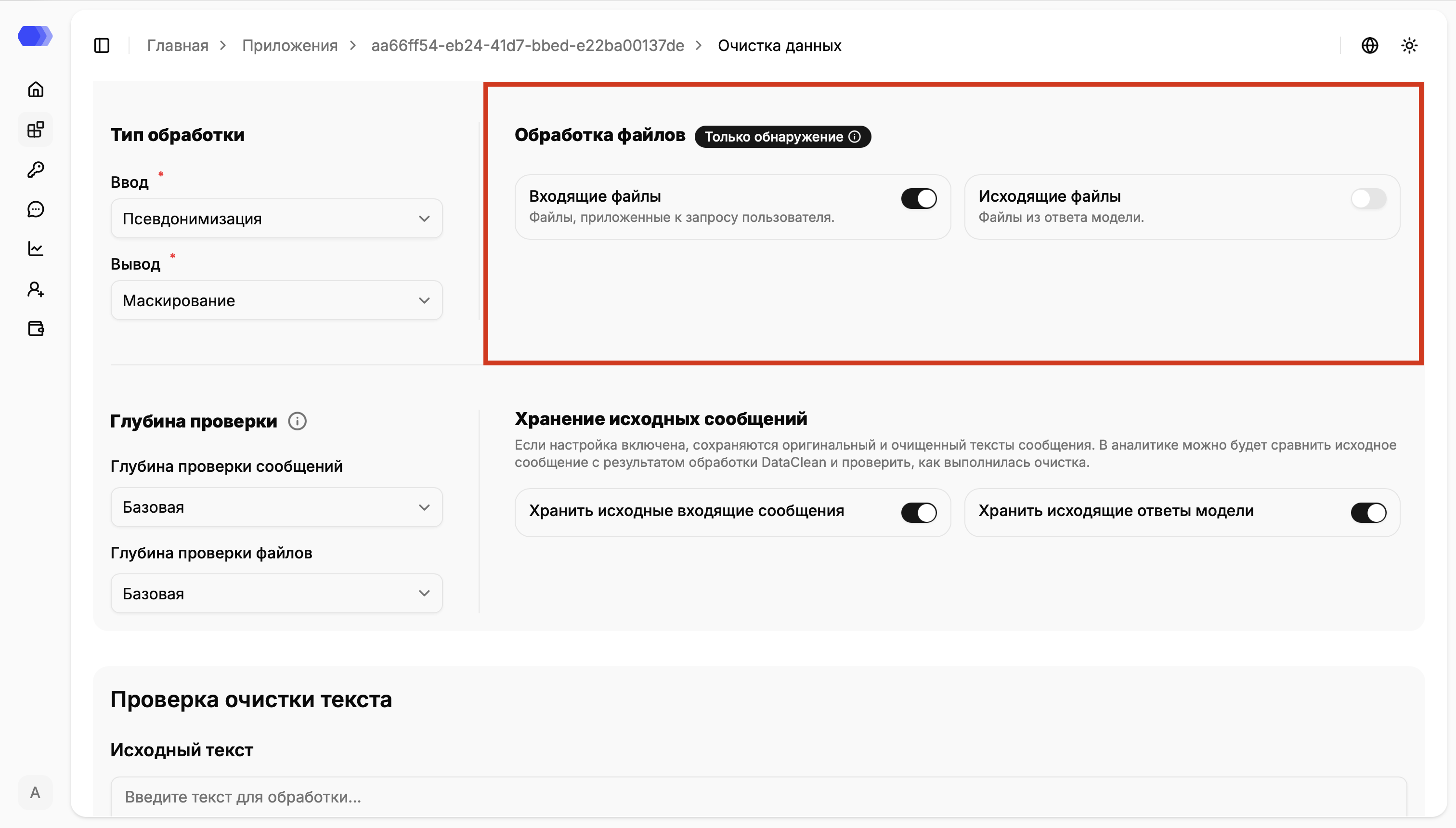
Section titled “File processing”Incoming files and Outgoing files control text extraction and inspection for user attachments and model-produced files. Detection only means entities are reported without modifying the file.
Inspection depth and source storage
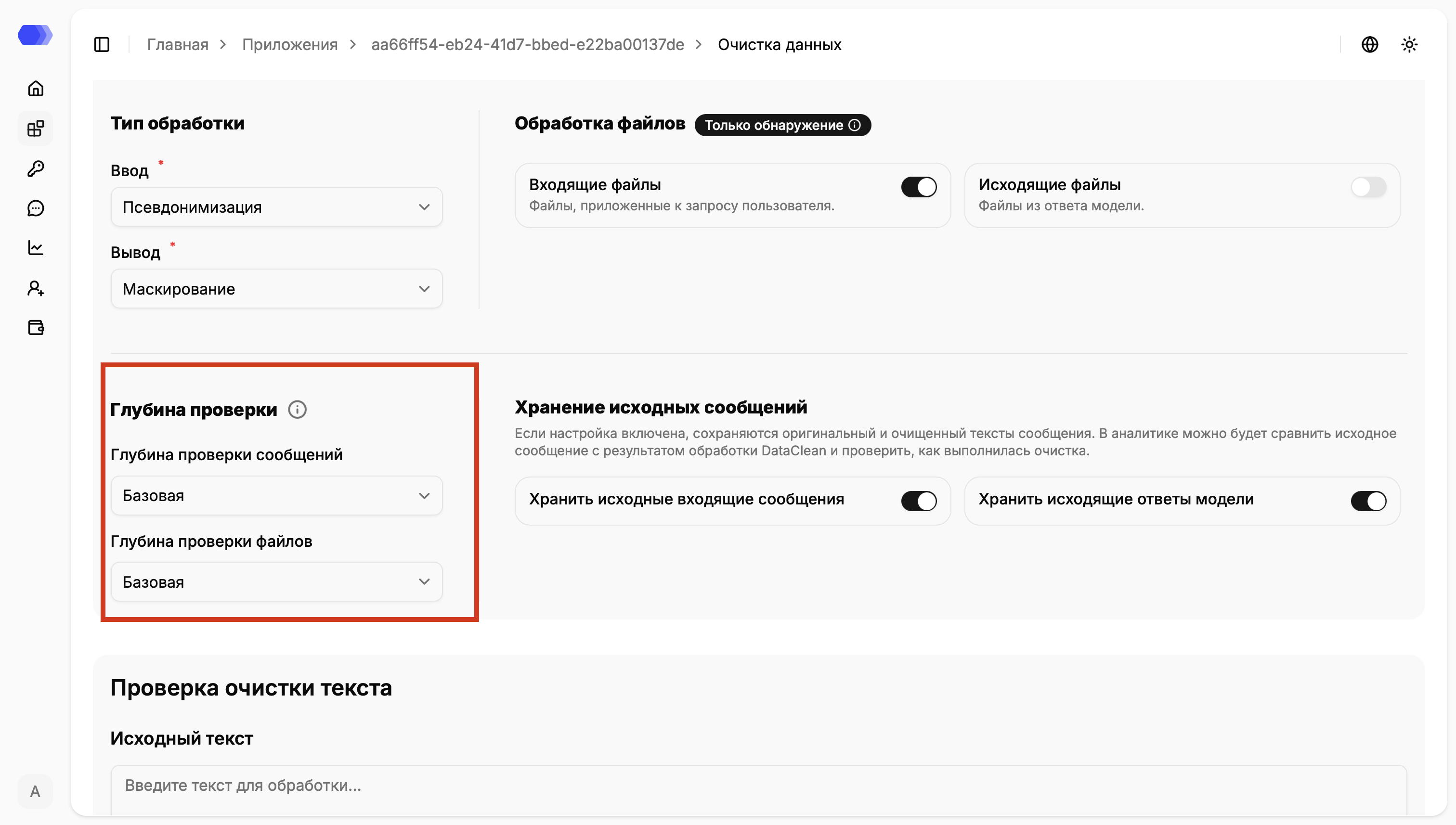
Section titled “Inspection depth and source storage”Message and file inspection depth controls how much context is analyzed. Deeper inspection can improve contextual detection but costs more time and resources.
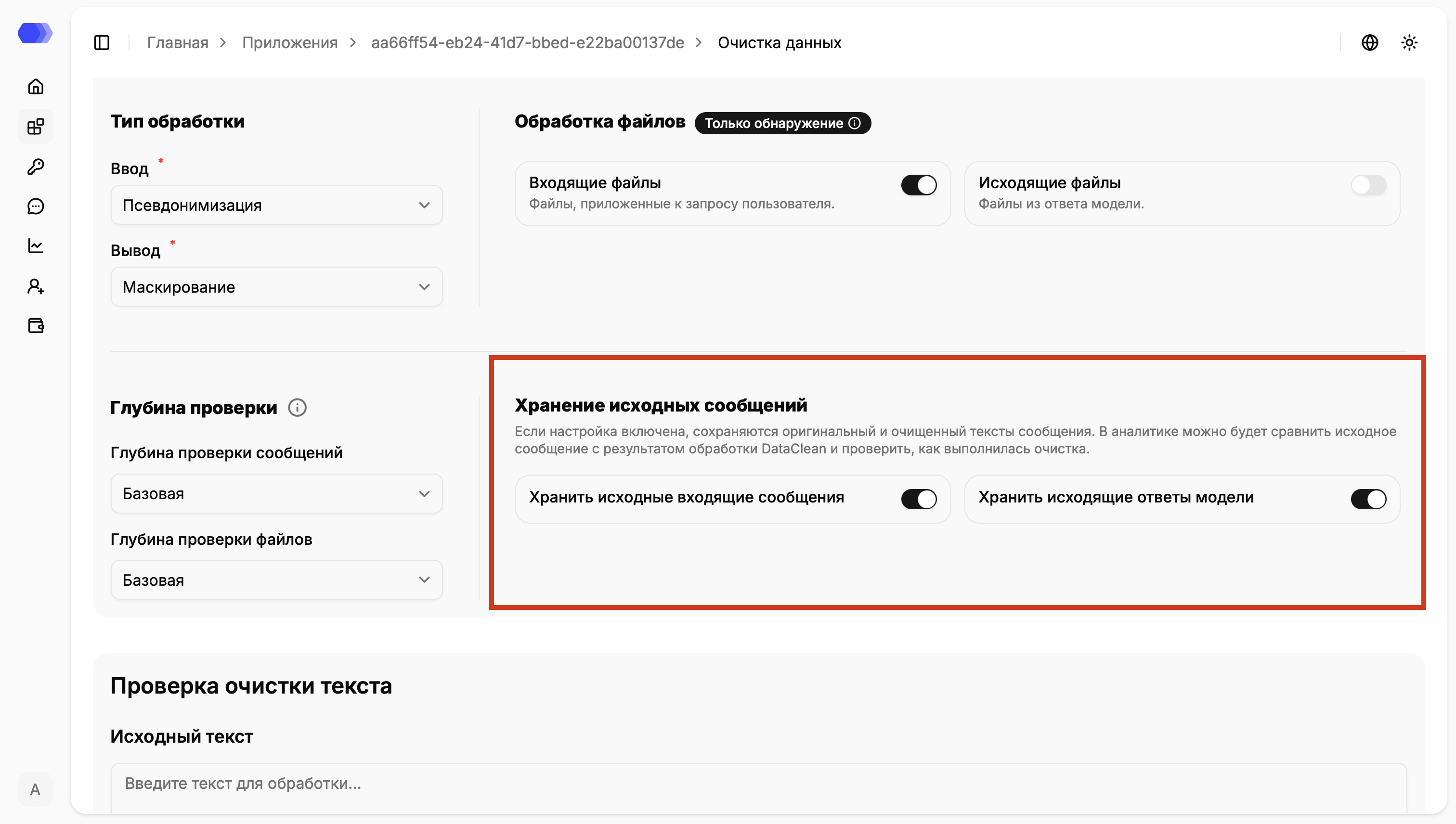
Source-storage switches retain both original and cleaned messages for comparison in analytics. Enable them only when permitted by your access and retention policies.
Test data cleaning
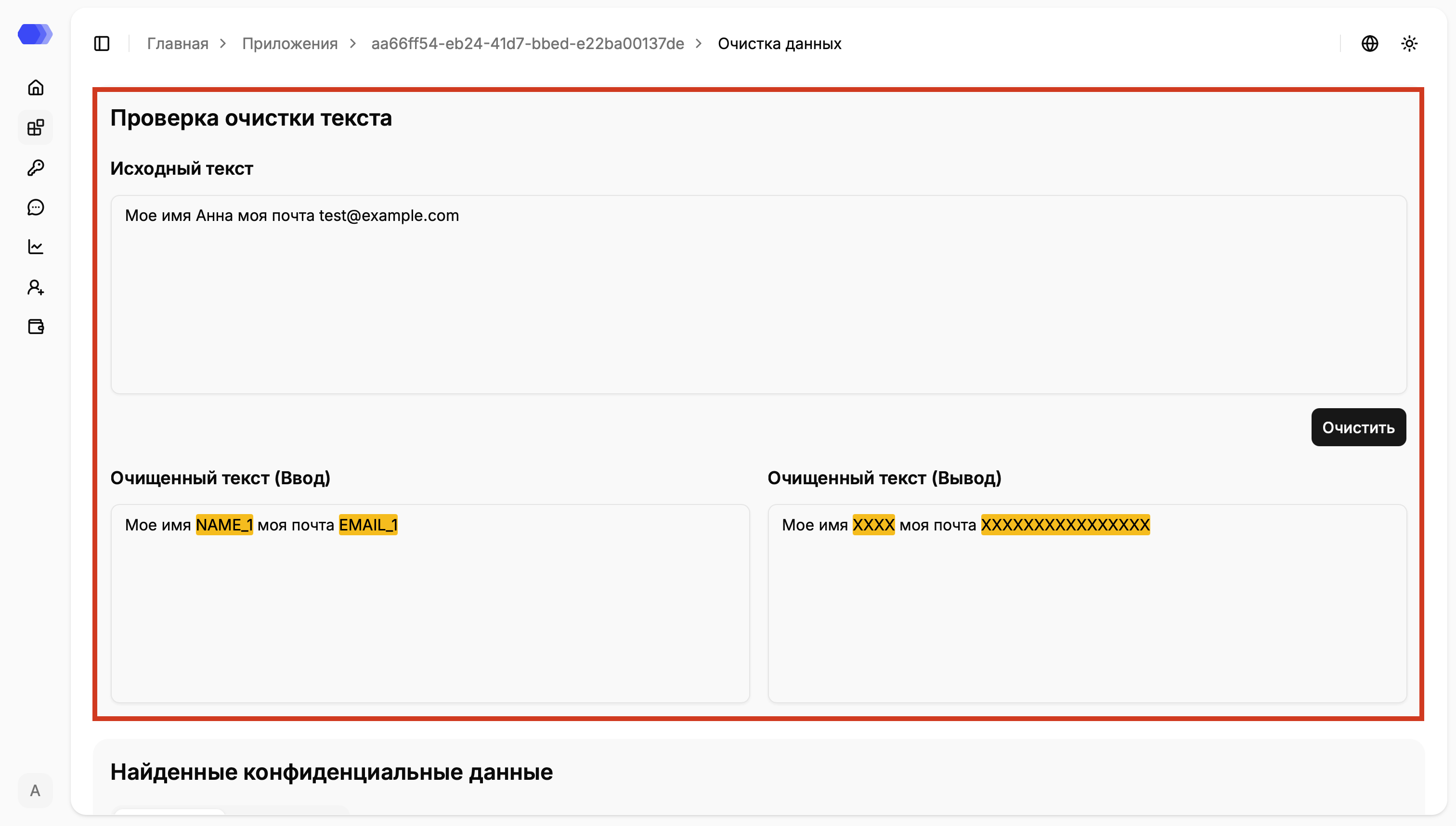
Section titled “Test data cleaning”- Enter a sample in Source text.
- Click Clean.
- Compare Cleaned text (Input) and Cleaned text (Output).
- Verify pseudonymized labels and masked values.
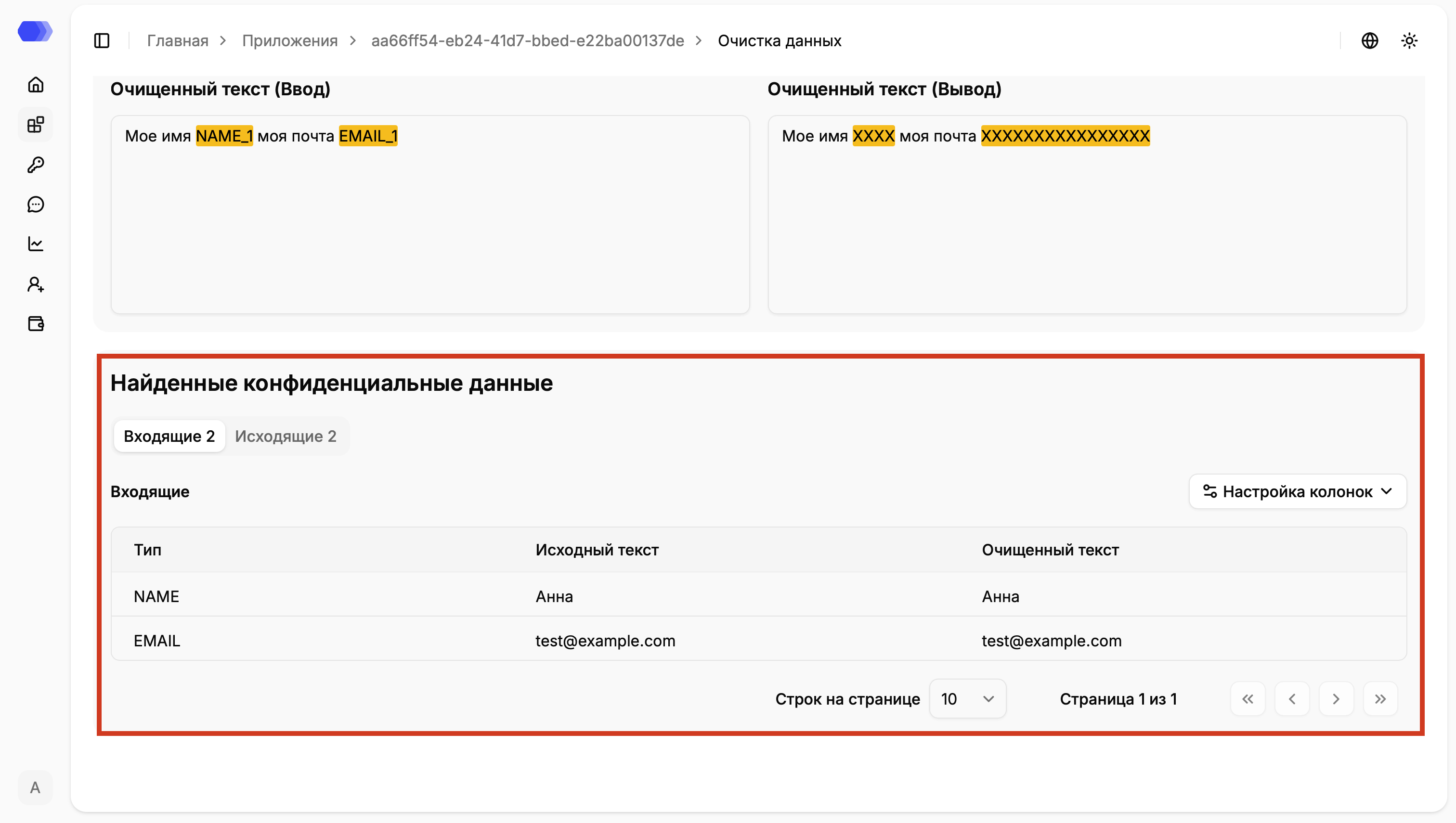
- Review Detected sensitive data using the Incoming and Outgoing tabs.
The result table shows the entity type, source text, and cleaned text. Use Column settings to select visible columns.
Recommended setup order
Section titled “Recommended setup order”- Enable the required built-in patterns and directions.
- Add custom patterns and exceptions.
- Select message-processing modes.
- Configure files, inspection depth, and source storage.
- Test the configuration.
- Send a test request and verify it in Session analytics.